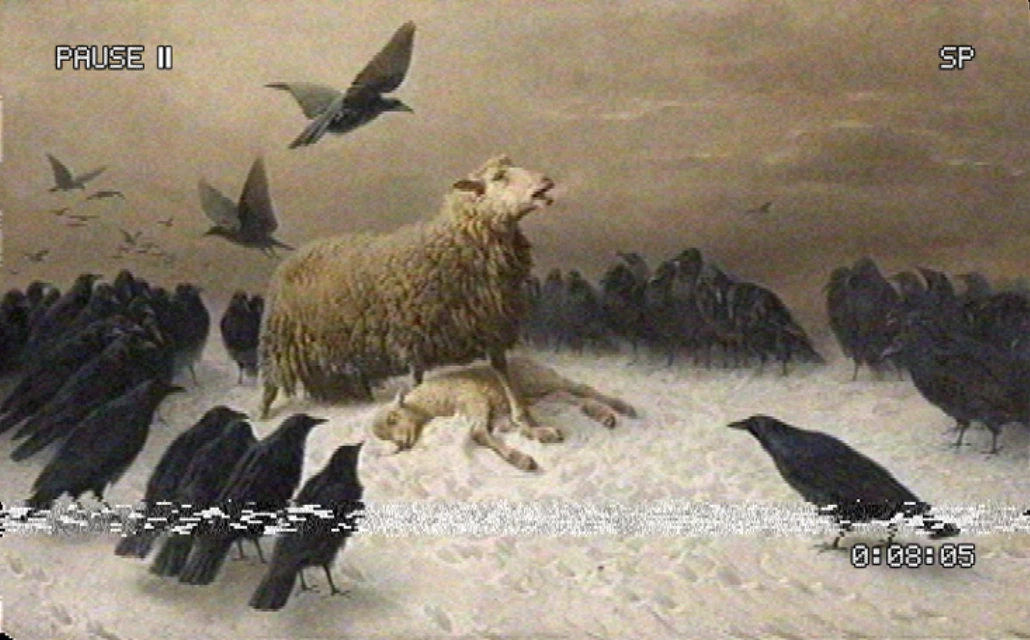
A good VHS look is more than noise on top of a clip. Real tapes smear color, wobble, tear at the bottom and lose detail with every copy. This guide shows how to get all of that in Dasca, on video or on a still image.
What makes footage look like VHS
- Soft picture. Tape keeps far less detail than digital video.
- Color bleed. Color lags behind the picture and runs to the right of shapes.
- Noise and streaks. Grainy lines from the tape and the playback heads.
- Wobble. Lines shift sideways and the top of the frame bends.
- A torn band at the bottom. This is where the playback heads switch.
- Tracking errors and dropouts. Noise bars, jumps and short white flashes.
The VHS effect in Dasca builds each of these on its own, so you can push one and leave the rest alone.
Add the VHS effect
- Open your video or image in Dasca.
- In the Effects library, search for VHS and click it.
- Press C to switch between the result and the original.
That is already a convincing tape look. The default style is Rental Tape, a copy of a copy played at standard speed.
Pick a tape style
Each style sets every control at once. Start with the one closest to your idea.
| Style | Good for |
|---|---|
| Rental Tape | A clean, believable tape look for music videos. |
| Home Movie | Family footage, with a date stamp burned in. |
| TV Recording | Something taped off TV late at night. Noisier and less stable. |
| Bootleg Copy | A copy copied too many times. Faded and soft. |
| Found Footage | Horror and mystery edits. Heavy tracking trouble and dropouts. |
| Paused | A frozen frame with the deck display on screen. |
Fine-tune the look
After you pick a style, these controls change the most:
- Generation sets how many times the tape was copied. Each step softens the picture, fades color and lifts the blacks.
- Color Bleed and Color Noise control the smeared color.
- Tracking Error adds the noise band and makes the picture shake and jump.
- Head Switching sets how strong the torn band at the bottom is.
- Overlay adds a Date Stamp or a VCR Display. You can type your own date and clock.
Every control is listed in the VHS docs.
Animate it
Any value can be keyframed on the timeline. Two moves work well:
- Animate Tracking Error from high to 0, so it looks like someone is fixing the tracking.
- Raise Generation slowly, so the picture wears out as the clip plays.
For pause, rewind and fast forward, keyframe Playback with hold keyframes. It switches cleanly instead of fading.
Go further
- Add TV before VHS to record a monitor onto tape.
- Add Film Grain for a light leak at the edge of the frame.
Export
Export as MP4 for social posts, as a GIF for short loops, or as ProRes or a PNG sequence for editing. Save the project file too, so every value stays editable later.